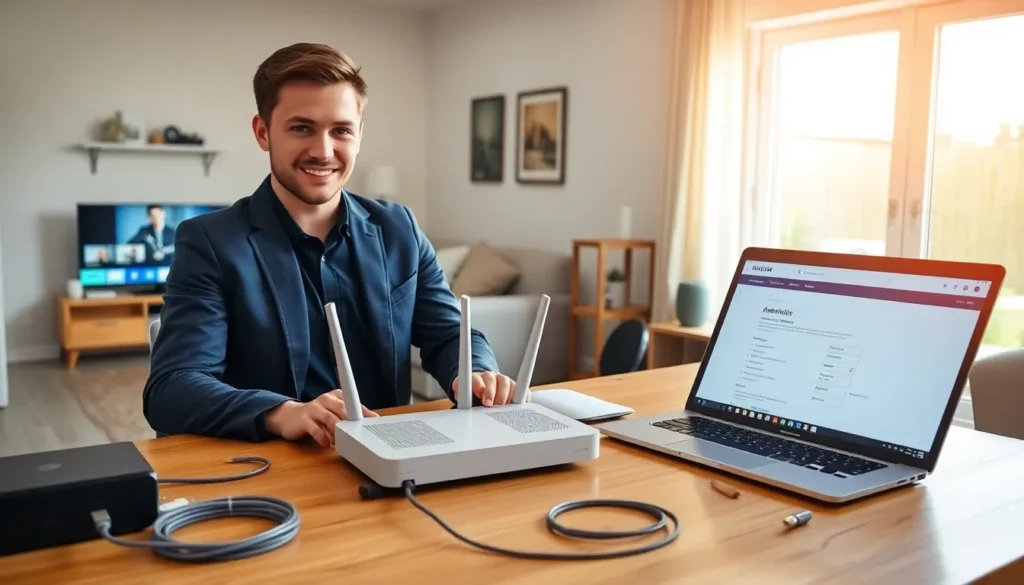

Home networking for beginners doesn’t have to feel overwhelming. Whether someone wants to stream movies in the living room, work from a home office, or connect smart devices throughout the house, a reliable home network makes it all possible. This guide breaks down everything a first-timer needs to know, from understanding what a home network actually does to setting one up and keeping it secure. By the end, readers will have the confidence to build and manage their own network without calling in a professional.
Table of Contents
ToggleKey Takeaways
- Home networking for beginners starts with understanding that a modem connects you to the internet while a router distributes that connection to all your devices.
- Position your router in a central, elevated location away from walls and metal objects to maximize Wi-Fi coverage throughout your home.
- Secure your home network by changing default router credentials, enabling WPA3 encryption, and creating a separate guest network for visitors.
- For the most stable connections, use Ethernet cables for bandwidth-heavy devices like gaming PCs and streaming boxes.
- If you experience Wi-Fi dead zones, consider adding a Wi-Fi extender or upgrading to a mesh system for seamless whole-home coverage.
- Most home networking problems can be solved by restarting your modem and router, checking cable connections, or adjusting your Wi-Fi channel settings.
What Is a Home Network and Why Do You Need One?
A home network connects all the devices in a household so they can communicate with each other and access the internet. This includes computers, smartphones, tablets, smart TVs, gaming consoles, and IoT devices like smart thermostats or security cameras.
Think of a home network as a digital highway running through the house. Without it, each device would need its own separate internet connection, expensive and impractical. With a home network, everyone shares one internet connection efficiently.
Here’s why a home network matters:
- Shared internet access: Multiple people can browse, stream, and download simultaneously.
- File sharing: Transfer photos, documents, or media between devices without USB drives or cloud uploads.
- Printer sharing: One printer can serve every computer in the home.
- Smart home integration: Connected devices like lights, locks, and speakers need a network to function together.
- Entertainment: Stream content from a computer to a TV or access a media server from any room.
For beginners, home networking opens up possibilities that make daily life more convenient. A well-configured network saves time, reduces frustration, and supports modern lifestyles.
Essential Equipment for Your Home Network
Building a home network requires a few key pieces of hardware. Fortunately, most beginners won’t need anything fancy to get started.
Modem
The modem connects the home to the internet service provider (ISP). It translates the signal from the ISP into data that devices can use. Many ISPs provide a modem as part of the service, though some users prefer to buy their own for better performance or to avoid rental fees.
Router
The router distributes the internet connection to all devices in the home. It creates the actual network, both wired and wireless. Modern routers support Wi-Fi, allowing smartphones and laptops to connect without cables. When shopping for a router, look for one that supports Wi-Fi 6 (802.11ax) for faster speeds and better performance with multiple devices.
Modem-Router Combo
Some devices combine the modem and router into one unit. These all-in-one solutions save space and simplify setup for home networking beginners. But, separate devices often offer more flexibility and easier upgrades.
Ethernet Cables
For the fastest, most stable connections, Ethernet cables connect devices directly to the router. Gaming PCs, streaming boxes, and home offices benefit from wired connections. Cat6 cables work well for most home networks.
Optional: Network Switch
If the router doesn’t have enough Ethernet ports, a network switch adds more. This becomes useful in larger homes or for users with many wired devices.
Optional: Wi-Fi Extender or Mesh System
Large homes or those with thick walls may experience dead zones where Wi-Fi signals weaken. A Wi-Fi extender boosts the signal, while a mesh system creates seamless coverage throughout the entire space. Mesh systems cost more but deliver better results for home networking.
Setting Up Your Home Network Step by Step
Setting up a home network takes about 30 minutes for most beginners. Here’s how to do it:
Step 1: Position the equipment
Place the modem near where the internet line enters the home. Position the router in a central location, elevated if possible. Avoid putting it in closets, behind furniture, or near metal objects that can block signals.
Step 2: Connect the modem
Plug the modem into the wall outlet (coaxial cable for cable internet, phone jack for DSL, or Ethernet for fiber). Connect the power cable and wait for the modem to fully boot up, usually indicated by steady lights.
Step 3: Connect the router
Use an Ethernet cable to connect the modem to the router’s WAN or Internet port. Plug in the router’s power cable. Wait a few minutes for it to initialize.
Step 4: Access the router settings
Open a web browser on a connected device and type the router’s IP address (commonly 192.168.1.1 or 192.168.0.1). Log in using the default credentials found on the router or in its manual.
Step 5: Configure the network name and password
Change the default network name (SSID) to something recognizable. Create a strong Wi-Fi password, at least 12 characters with a mix of letters, numbers, and symbols. This step is critical for home network security.
Step 6: Connect devices
On each device, find the new network name in Wi-Fi settings and enter the password. For wired connections, simply plug Ethernet cables into the router’s LAN ports.
Home networking for beginners becomes straightforward once these steps are complete. The network is now ready to use.
Basic Security Tips to Protect Your Network
A home network without proper security invites trouble. Hackers can steal personal data, hijack bandwidth, or even access connected devices like cameras. These basic steps keep a network safe:
Change default credentials
Routers ship with generic usernames and passwords like “admin/admin.” Change these immediately. Attackers know these defaults and exploit them regularly.
Use WPA3 encryption
WPA3 is the latest and most secure Wi-Fi encryption standard. If the router supports it, enable WPA3 in the settings. WPA2 remains acceptable if WPA3 isn’t available, but avoid WEP, it’s outdated and easily cracked.
Create a guest network
Set up a separate network for visitors. This keeps their devices isolated from personal computers and smart home gadgets. Most routers offer a guest network feature in their settings.
Keep firmware updated
Router manufacturers release firmware updates to fix security vulnerabilities. Check for updates every few months, or enable automatic updates if the option exists.
Disable remote management
Unless there’s a specific need to access the router from outside the home, turn off remote management. This closes a potential entry point for attackers.
Monitor connected devices
Periodically review the list of devices connected to the home network. Unknown devices might indicate unauthorized access. Most router apps or admin panels show this information.
Home networking security doesn’t require technical expertise. These straightforward measures block the vast majority of threats.
Troubleshooting Common Home Network Issues
Even well-configured home networks encounter problems. Here’s how to fix the most common issues:
Slow internet speeds
First, test the speed at speedtest.net to establish a baseline. If speeds are significantly lower than what the ISP promises, try these fixes:
- Restart the modem and router (unplug for 30 seconds, then reconnect)
- Move the router to a more central location
- Reduce interference by keeping the router away from microwaves and cordless phones
- Connect bandwidth-heavy devices via Ethernet
Devices won’t connect to Wi-Fi
Verify the password is entered correctly, Wi-Fi passwords are case-sensitive. If that’s not the issue, restart the device. Sometimes, forgetting the network and reconnecting fresh solves the problem. Also check that the router hasn’t reached its device limit.
Intermittent connection drops
Frequent disconnections often point to interference or an overheating router. Ensure proper ventilation around the equipment. Changing the Wi-Fi channel in router settings can also help, channels 1, 6, and 11 work best for 2.4 GHz networks since they don’t overlap.
No internet connection
Check the modem lights first. If they indicate a problem, contact the ISP, the issue may be on their end. If the modem looks fine but there’s still no connection, restart both the modem and router. Confirm all cables are securely connected.
Weak signal in certain rooms
Dead zones plague many homes. Solutions include repositioning the router, adding a Wi-Fi extender, or upgrading to a mesh system for whole-home coverage.
Home networking problems usually have simple solutions. Patience and systematic troubleshooting resolve most issues within minutes.