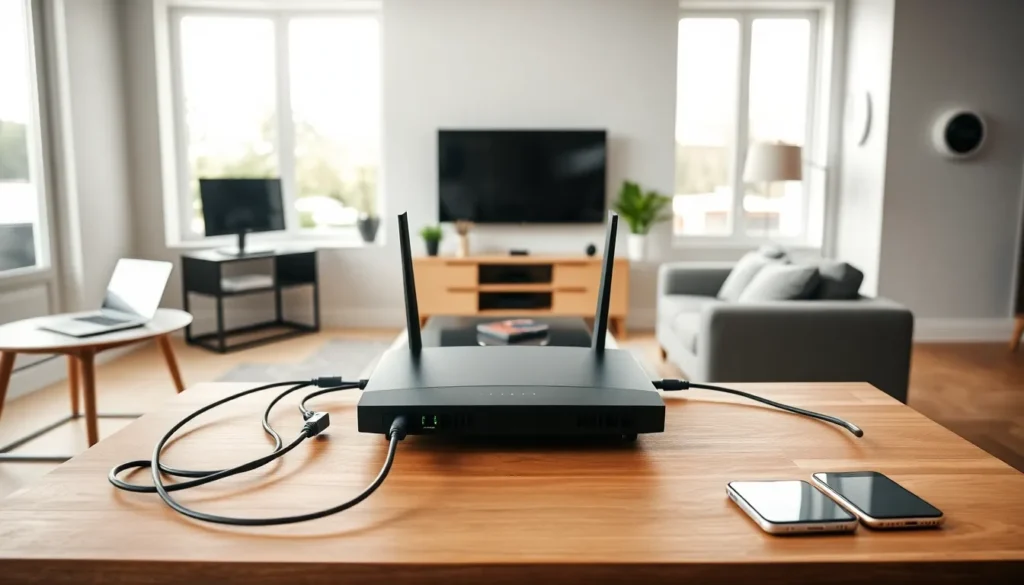

Home networking has become essential for modern households. The average American home now connects over 20 devices to the internet, from smartphones and laptops to smart thermostats and security cameras. A well-designed home network keeps these devices running smoothly, securely, and without frustrating dead zones.
This guide covers everything needed to build a reliable home network. It explains core concepts, lists essential equipment, walks through setup steps, and shares practical tips for better performance and security. Whether someone is starting from scratch or upgrading an existing setup, these strategies will help create a connected home that actually works.
Table of Contents
ToggleKey Takeaways
- A reliable home network requires three core components: a modem, a router, and connected devices working together seamlessly.
- Position your router centrally and elevated to maximize Wi-Fi coverage and minimize dead zones throughout your home.
- Use Ethernet cables for stationary devices like gaming consoles and smart TVs to get the fastest, most stable connections.
- Mesh Wi-Fi systems are ideal for large homes or spaces with thick walls, providing consistent coverage across every room.
- Secure your home network by enabling WPA3 encryption, using strong passwords, and keeping router firmware updated.
- Create a separate guest network to isolate visitors’ devices and protect your personal files and smart home equipment.
Understanding the Basics of Home Networking
A home network connects devices so they can share an internet connection and communicate with each other. At its core, every home network includes three main components: a modem, a router, and connected devices.
The modem receives the internet signal from an Internet Service Provider (ISP). It translates that signal into data computers can use. The router then distributes this connection to multiple devices, either through Ethernet cables or Wi-Fi.
Most home networking setups use a combination of wired and wireless connections. Ethernet cables provide the fastest, most stable connections. They work best for stationary devices like desktop computers, gaming consoles, and smart TVs. Wi-Fi offers flexibility for mobile devices and areas where running cables isn’t practical.
Two key terms matter here: bandwidth and latency. Bandwidth measures how much data can transfer at once, think of it as the width of a highway. Latency measures delay, how long data takes to travel from one point to another. For video calls and gaming, low latency matters more than raw bandwidth.
Home networks also use IP addresses to identify each device. The router assigns private IP addresses to devices inside the network while the modem uses a public IP address to communicate with the broader internet. This system keeps internal traffic organized and adds a basic layer of protection.
Essential Equipment for Your Home Network
Building a solid home network requires the right equipment. Here’s what most households need:
Modem: This device connects to the ISP. Many people rent modems from their provider, but buying one often saves money over time. Make sure any purchased modem is compatible with the ISP’s service.
Router: The router manages traffic between devices and the internet. Modern routers support Wi-Fi 6 or Wi-Fi 6E, which handle more devices simultaneously and offer faster speeds. Look for routers with at least four Ethernet ports and dual-band or tri-band capability.
Mesh Wi-Fi Systems: Large homes or those with thick walls benefit from mesh systems. These use multiple access points to blanket the entire space with consistent coverage. Popular options include products from Google, Eero, and TP-Link.
Ethernet Cables: Cat6 cables support speeds up to 10 Gbps over short distances. They’re affordable and provide the most reliable connections for devices that don’t move.
Network Switches: If the router doesn’t have enough Ethernet ports, a network switch adds more. An 8-port switch typically costs under $30 and handles most home networking needs.
Powerline Adapters: These devices send network signals through electrical wiring. They’re useful when running Ethernet cables isn’t possible, though performance varies based on home wiring quality.
Some households also add network-attached storage (NAS) devices for centralized file storage or dedicated access points to extend Wi-Fi coverage in specific areas.
Setting Up Your Home Network Step by Step
Setting up a home network doesn’t require technical expertise. Follow these steps for a straightforward installation:
Step 1: Position the Router Centrally
Place the router in a central location, elevated off the floor. Avoid closets, cabinets, and areas near microwaves or cordless phones. These block or interfere with Wi-Fi signals.
Step 2: Connect the Modem
Plug the modem into the ISP’s connection point (usually a coaxial cable or phone jack). Connect the modem to the router using an Ethernet cable. Power on both devices and wait for indicator lights to stabilize.
Step 3: Configure the Router
Access the router’s admin panel through a web browser, the address is usually printed on the device or in the manual. Change the default admin password immediately. Set up a new network name (SSID) and a strong Wi-Fi password.
Step 4: Connect Devices
Connect wired devices using Ethernet cables. For wireless devices, find the new network name in Wi-Fi settings and enter the password. Most devices save these credentials for automatic reconnection.
Step 5: Update Firmware
Check the router’s admin panel for firmware updates. Manufacturers release updates to fix bugs and patch security vulnerabilities. Enable automatic updates if available.
Step 6: Test the Connection
Run a speed test from several locations in the home. This identifies dead zones and confirms the home networking setup is working correctly.
Optimizing Wi-Fi Coverage and Performance
Even a good home network can underperform without proper optimization. These strategies improve coverage and speed:
Choose the Right Frequency Band
Most routers broadcast on 2.4 GHz and 5 GHz bands. The 2.4 GHz band travels farther but offers slower speeds and more interference. The 5 GHz band is faster but has shorter range. Use 5 GHz for devices near the router and 2.4 GHz for distant ones.
Select Optimal Channels
Wi-Fi networks operate on channels within each band. Neighboring networks can cause interference if they use the same channel. Apps like Wi-Fi Analyzer identify crowded channels. Switch to less congested options in the router settings.
Reduce Interference
Keep the router away from other electronics, especially those using 2.4 GHz frequencies (baby monitors, Bluetooth devices, microwaves). Thick walls, metal objects, and fish tanks also block signals.
Add Range Extenders or Mesh Nodes
For persistent dead zones, range extenders or mesh nodes expand coverage. Mesh systems provide seamless roaming, devices switch between access points without dropping connection. Traditional extenders create separate networks and may reduce speeds.
Use Quality of Service (QoS) Settings
QoS features let the router prioritize certain types of traffic. Video conferencing and gaming benefit from higher priority than background downloads. Most modern routers include QoS options in their admin panels.
Upgrade When Necessary
Older routers can’t keep pace with modern home networking demands. If speeds consistently fall short even though optimization, upgrading to a Wi-Fi 6 router often solves the problem.
Security Best Practices for Home Networks
A home network is only as strong as its security. Hackers target vulnerable home networks to steal data or hijack devices. These practices protect against common threats:
Use Strong, Unique Passwords
Create complex passwords for both the Wi-Fi network and router admin panel. Use a mix of uppercase letters, lowercase letters, numbers, and symbols. Avoid dictionary words and personal information.
Enable WPA3 Encryption
WPA3 is the current security standard for Wi-Fi networks. It’s harder to crack than older WPA2 encryption. If the router supports WPA3, enable it in the security settings. Fall back to WPA2 if older devices can’t connect.
Create a Guest Network
A separate guest network keeps visitors’ devices isolated from the main home network. This prevents compromised guest devices from accessing personal files or smart home equipment.
Disable Remote Management
Unless specifically needed, turn off remote management features. These allow access to router settings from outside the home, a potential entry point for attackers.
Keep Firmware Updated
Manufacturers patch vulnerabilities through firmware updates. Check for updates monthly, or enable automatic updates. Outdated firmware is one of the most common home networking security weaknesses.
Monitor Connected Devices
Regularly review the list of devices connected to the network. Unknown devices may indicate unauthorized access. Most router admin panels show connected devices by name and MAC address.
Consider a Firewall
Most routers include basic firewall features. Ensure they’re enabled. For additional protection, some households add dedicated hardware firewalls or use software firewalls on individual devices.