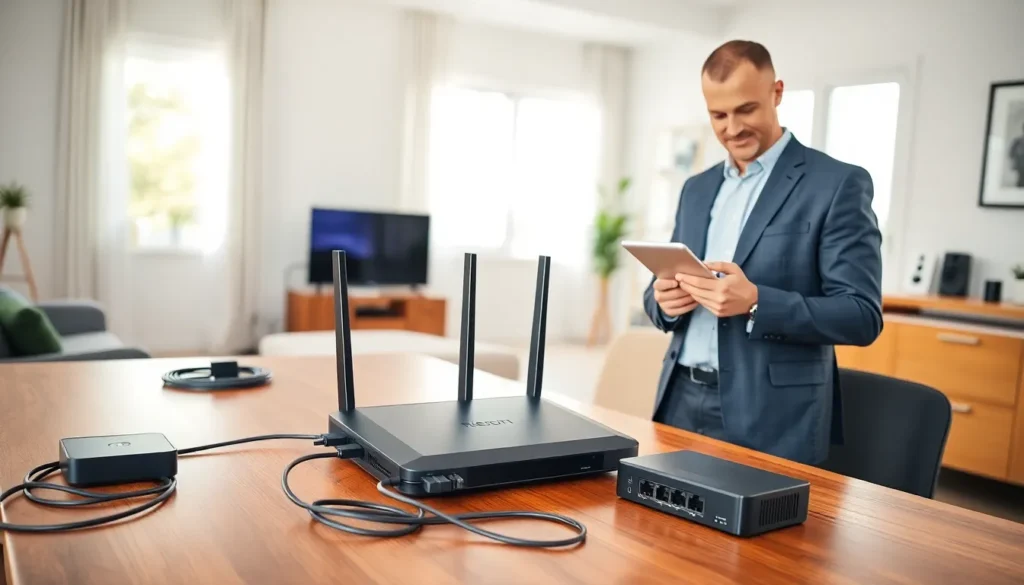

A solid home network forms the backbone of modern living. Streaming, gaming, remote work, and smart home devices all depend on reliable connectivity. This home networking guide breaks down everything needed to build a fast, stable, and secure network from scratch.
Whether someone is setting up their first router or upgrading an existing setup, understanding the basics makes a huge difference. The right equipment, proper configuration, and smart security practices turn a frustrating connection into one that just works. Let’s get into it.
Table of Contents
ToggleKey Takeaways
- A reliable home network requires essential equipment including a modem, router, Ethernet cables, and possibly a mesh system for larger spaces.
- Position your router in a central, elevated location to maximize Wi-Fi coverage and minimize signal interference from walls and appliances.
- Secure your home network by changing default credentials, enabling WPA3 encryption, and creating a separate guest network for visitors and IoT devices.
- Use the 5GHz band for faster speeds on nearby devices and the 2.4GHz band for better range on devices farther from the router.
- Regularly update your router’s firmware and monitor connected devices to maintain optimal performance and security.
- Consider a mesh Wi-Fi system instead of range extenders to eliminate dead zones while maintaining consistent network speeds throughout your home.
Understanding Home Network Basics
A home network connects devices so they can share data and internet access. The setup typically includes a modem, router, and connected devices like computers, phones, and smart TVs.
The modem receives the internet signal from the service provider. It translates that signal into something home devices can use. The router then distributes this connection to multiple devices, either through Wi-Fi or Ethernet cables.
Most modern home networks use two types of connections:
- Wired (Ethernet): Offers faster speeds and lower latency. Ideal for gaming consoles, desktop computers, and streaming boxes.
- Wireless (Wi-Fi): Provides flexibility and convenience. Works best for phones, tablets, and laptops that move around the house.
Understanding these home network basics helps users make better decisions about equipment and placement. A strong foundation prevents headaches down the road.
Essential Equipment You Need
Building a reliable home network starts with the right gear. Here’s what most households need:
Modem
The modem connects to the internet service provider (ISP). Some ISPs provide modems, but buying one often saves money over time. Look for DOCSIS 3.1 compatibility for cable internet, it handles higher speeds efficiently.
Router
The router creates the local network. It assigns IP addresses to devices and manages traffic. Wi-Fi 6 routers offer faster speeds, better range, and improved performance with multiple devices. Dual-band or tri-band options help reduce congestion.
Modem-Router Combo
These all-in-one units save space and simplify setup. They work well for smaller homes or apartments. But, separate devices offer more flexibility for upgrades.
Ethernet Cables
Cat6 or Cat6a cables deliver reliable wired connections. They’re affordable and worth running to stationary devices like gaming systems or home offices.
Network Switch
A switch adds more Ethernet ports when the router runs out. Homes with multiple wired devices benefit from this addition.
Mesh Wi-Fi System
Larger homes often struggle with dead zones. Mesh systems use multiple units to blanket the entire space with consistent coverage. They’re easier to manage than traditional range extenders.
Setting Up Your Home Network Step by Step
Setting up a home network doesn’t require technical expertise. Follow these steps for a smooth installation:
Step 1: Position the Modem
Place the modem near the main cable or fiber entry point. Connect it to the wall outlet using the provided coaxial or fiber cable. Plug in the power adapter and wait for the connection lights to stabilize.
Step 2: Connect the Router
Use an Ethernet cable to connect the modem’s output port to the router’s WAN (internet) port. Power on the router and allow it to boot up completely.
Step 3: Access Router Settings
Open a web browser and enter the router’s default IP address (usually 192.168.1.1 or 192.168.0.1). Log in using the credentials printed on the router or in its manual.
Step 4: Configure the Network
Change the default network name (SSID) to something recognizable. Set a strong password, at least 12 characters mixing letters, numbers, and symbols. Enable WPA3 encryption if available, or WPA2 as a fallback.
Step 5: Connect Devices
Search for the new network name on each device. Enter the password to connect. For wired devices, plug Ethernet cables directly into the router or a connected switch.
Step 6: Test the Connection
Run a speed test to verify the network performs as expected. Check different areas of the home to identify any weak spots.
Tips for Improving Wi-Fi Coverage and Speed
Even a good home network can underperform without proper optimization. These tips help maximize Wi-Fi coverage and speed:
Central Router Placement
Place the router in a central location, elevated off the floor. Avoid closets, basements, or corners. Walls, floors, and large appliances block signals.
Reduce Interference
Microwaves, cordless phones, and baby monitors operate on similar frequencies. Keep the router away from these devices. Neighboring Wi-Fi networks also cause interference, switching channels in router settings can help.
Use the 5GHz Band
The 5GHz band offers faster speeds but shorter range. Use it for devices close to the router. The 2.4GHz band reaches farther but handles less traffic. Split devices between both bands for better performance.
Update Firmware Regularly
Router manufacturers release firmware updates that fix bugs and improve performance. Check for updates monthly through the router’s admin panel.
Consider a Mesh System
Traditional range extenders often create separate networks and reduce speeds. Mesh systems maintain a single network with consistent performance throughout the home.
Limit Bandwidth-Heavy Activities
Streaming 4K video and large downloads consume significant bandwidth. Quality of Service (QoS) settings in the router prioritize important traffic like video calls over background downloads.
Securing Your Home Network
An unsecured home network invites trouble. Hackers can steal personal data, use bandwidth, or access smart home devices. These security measures provide essential protection:
Change Default Credentials
Routers ship with generic usernames and passwords. Change both immediately. Attackers know default credentials and target them first.
Enable Strong Encryption
WPA3 offers the strongest protection for home networks. If devices don’t support WPA3, use WPA2-AES. Avoid WEP, it’s outdated and easily cracked.
Create a Guest Network
Visitors and IoT devices should connect to a separate guest network. This isolates them from the main network where computers and sensitive data reside.
Disable WPS
Wi-Fi Protected Setup (WPS) makes connecting devices easier but introduces security vulnerabilities. Turn it off in router settings.
Enable the Firewall
Most routers include a built-in firewall. Verify it’s activated to block unauthorized incoming connections.
Monitor Connected Devices
Check the router’s admin panel periodically. Unknown devices might indicate unauthorized access. Remove anything that doesn’t belong.
Use a VPN for Extra Privacy
A Virtual Private Network encrypts internet traffic. Some routers support VPN configuration directly, protecting all connected devices automatically.