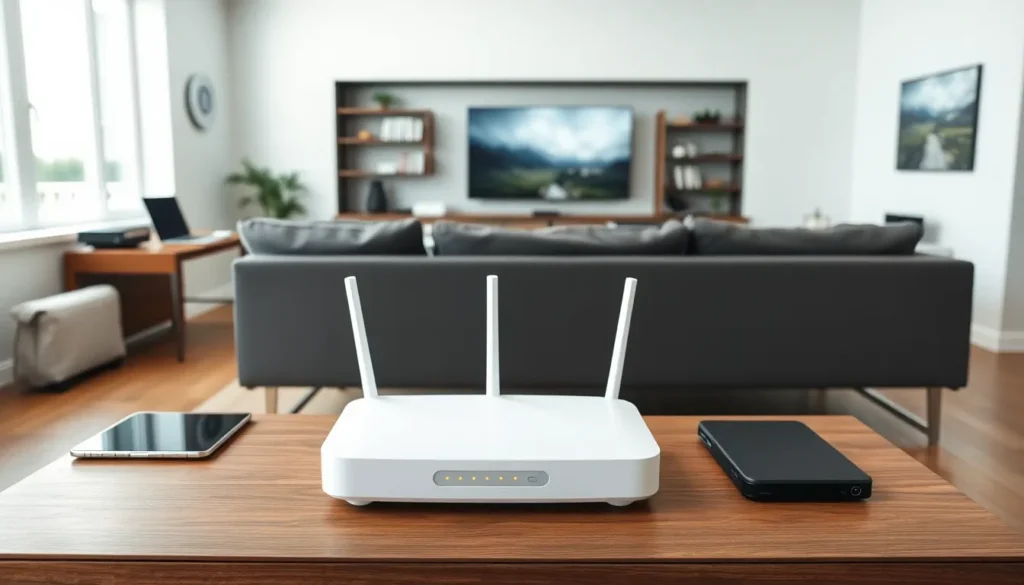

Home networking examples vary widely based on household size, usage patterns, and connected devices. A family streaming movies has different needs than a remote worker juggling video calls. The right home network setup makes the difference between buffering frustration and seamless connectivity.
This guide covers practical home networking examples for different scenarios. From basic configurations to gaming-optimized systems, each setup addresses specific challenges. Readers will find actionable solutions they can carry out today.
Table of Contents
ToggleKey Takeaways
- Home networking examples range from basic single-router setups for small apartments to mesh systems covering up to 6,000 square feet.
- Place your router in a central, elevated location and avoid closets or corners that block Wi-Fi signals.
- Mesh networks eliminate dead zones in larger homes by using multiple nodes that hand off connections seamlessly.
- Smart home networks benefit from device segmentation—keeping IoT devices on a separate guest network improves security and performance.
- Wired Ethernet connections outperform Wi-Fi for home offices and gaming setups by reducing latency and eliminating wireless interference.
- Use Quality of Service (QoS) settings to prioritize video calls and gaming traffic over less time-sensitive activities like downloads.
Basic Home Network Setup
A basic home network setup works well for small apartments and households with moderate internet usage. This configuration requires minimal equipment and takes about 30 minutes to complete.
Equipment Needed
The essential components include:
- Modem (often provided by the internet service provider)
- Wireless router
- Ethernet cables for wired connections
- Devices to connect (phones, laptops, tablets)
How It Works
The modem connects to the internet service provider through a coaxial or fiber cable. The router plugs into the modem and broadcasts a Wi-Fi signal throughout the home. Most modern routers support both 2.4GHz and 5GHz frequencies. The 2.4GHz band offers better range, while 5GHz provides faster speeds at shorter distances.
For this home networking example, place the router in a central location. Avoid closets or corners that block the signal. A living room bookshelf or hallway table works well.
Best Use Cases
This setup suits households with 1-3 people and fewer than 10 devices. It handles email, web browsing, social media, and standard-definition streaming without issues. Users who need more bandwidth should consider upgraded home networking examples in the sections below.
Mesh Network for Larger Homes
Larger homes often struggle with Wi-Fi dead zones. A mesh network solves this problem by using multiple access points that work together as one system.
How Mesh Networks Differ
Traditional routers broadcast from a single point. Walls, floors, and distance weaken the signal. Mesh systems use two or more nodes placed throughout the home. These nodes communicate with each other and hand off device connections seamlessly.
Popular mesh systems include Google Nest Wifi, Eero, and TP-Link Deco. Most systems support 3-5 nodes, covering homes up to 6,000 square feet.
Placement Strategy
This home networking example requires strategic node placement. The primary node connects to the modem. Secondary nodes should sit roughly 30-50 feet apart, positioned between the main node and dead zones. Keep nodes elevated and away from metal objects or appliances that cause interference.
Performance Expectations
Mesh networks maintain consistent speeds throughout the home. Users can walk from room to room without dropped connections. The trade-off? Mesh systems cost more than single routers. A quality mesh setup runs between $200-$500, compared to $50-$150 for a standalone router.
Families with multi-story homes or thick walls benefit most from this home networking example.
Smart Home Network Configuration
Smart homes require a network that handles dozens of connected devices. Thermostats, cameras, doorbells, lights, and voice assistants all compete for bandwidth.
Device Segmentation
Smart home networking examples often include network segmentation. This means creating separate networks for different device types. Many routers allow users to set up a guest network. Smart home devices can use this secondary network while personal devices stay on the primary one.
Why bother? Security is one reason. If a smart device gets compromised, attackers can’t easily access laptops or phones on the separate network. Performance is another factor, IoT devices won’t slow down streaming or work tasks.
Bandwidth Considerations
Most smart home devices use minimal bandwidth. A smart thermostat might use 50MB per month. Security cameras are the exception. A single 4K camera streaming continuously can consume 400GB monthly.
For homes with multiple cameras, hardwired connections beat Wi-Fi. Ethernet cables provide stable, dedicated bandwidth. Power over Ethernet (PoE) switches simplify installation by carrying power and data through one cable.
Hub Considerations
Some smart devices use Zigbee or Z-Wave protocols instead of Wi-Fi. These require a hub that connects to the router. This home networking example reduces Wi-Fi congestion since Zigbee and Z-Wave operate on different frequencies.
Home Office Network Setup
Remote work demands reliable connectivity. Video calls drop when bandwidth falters. This home networking example prioritizes stability and speed for professional use.
Wired vs. Wireless
Ethernet connections outperform Wi-Fi for home office setups. A Cat6 cable running from the router to a work computer eliminates wireless interference. Latency drops, and connection speeds become consistent.
Not everyone can run cables through walls. Powerline adapters offer an alternative. These devices transmit internet signals through existing electrical wiring. Performance varies based on home wiring quality, but they often beat Wi-Fi for stationary workstations.
Quality of Service Settings
Quality of Service (QoS) lets users prioritize certain traffic types. Most modern routers include QoS options in their settings. For home office networks, prioritize video conferencing and VoIP over streaming or downloads.
This home networking example ensures Zoom calls stay clear even when kids stream Netflix in another room.
Backup Connectivity
Professionals who can’t afford downtime should consider backup internet. Mobile hotspots provide emergency connectivity when the primary connection fails. Some routers support automatic failover, they switch to a backup connection if the main line drops.
Gaming and Streaming Optimized Network
Gamers and streamers need low latency and high bandwidth. This home networking example focuses on performance optimization.
Latency Reduction
Latency measures the time data takes to travel between devices and servers. Online gaming suffers with latency above 100ms. Competitive players aim for under 30ms.
Wired connections reduce latency significantly. Gaming consoles and PCs should connect via Ethernet whenever possible. For wireless gaming, 5GHz bands outperform 2.4GHz due to less congestion.
Router Selection
Gaming routers include features standard routers lack. These include:
- Advanced QoS with game-specific profiles
- Multi-gig Ethernet ports
- Traffic analysis tools
- Open NAT support for multiplayer gaming
Brands like ASUS ROG, Netgear Nighthawk, and TP-Link Archer focus on gaming-optimized home networking examples.
Streaming Considerations
4K streaming requires roughly 25Mbps per stream. Households with multiple simultaneous streams need internet plans that exceed combined requirements. A family streaming on three devices needs at least 100Mbps service for comfortable performance.
Upload speed matters for content creators. Twitch streaming at 1080p60 requires 6-8Mbps upload. Standard internet plans often neglect upload speeds, so creators should verify their plan meets these requirements.