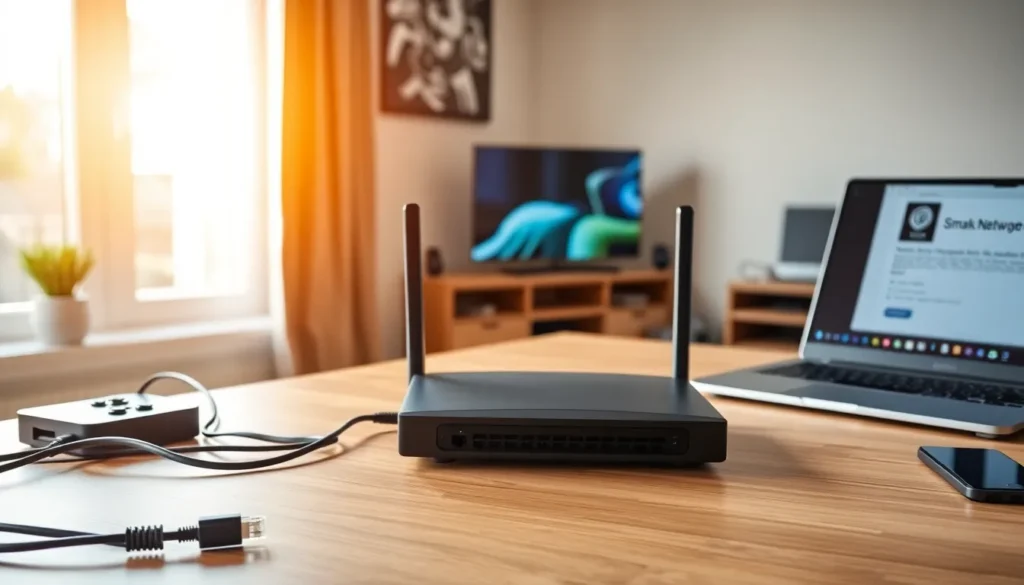

Learning how to home networking doesn’t require a tech degree. It requires a basic understanding of equipment, setup steps, and security practices. A reliable home network connects all devices, computers, phones, smart TVs, and gaming consoles, to the internet and to each other.
This guide breaks down home networking into clear, actionable steps. Readers will learn what equipment they need, how to configure their network, and how to keep it secure. Whether someone streams movies, works from home, or just wants better WiFi coverage, this guide covers the essentials.
Table of Contents
ToggleKey Takeaways
- Home networking requires just a few essential pieces of equipment: a modem, router, and Ethernet cables for wired connections.
- Position your router in a central, elevated location away from walls and appliances to maximize WiFi coverage.
- Secure your home network by changing default passwords, enabling WPA3 encryption, and creating a separate guest network.
- A hybrid network combining wired Ethernet for speed and WiFi for flexibility works best for most households.
- Troubleshoot slow speeds by switching to the 5 GHz band, removing obstacles, and restarting your router.
- Regularly update your router’s firmware to patch security vulnerabilities and maintain optimal performance.
Understanding Home Network Basics
A home network is a group of devices connected to share internet access and communicate with each other. The network uses either wired connections (Ethernet cables) or wireless signals (WiFi) to link devices.
How Home Networks Work
Every home network starts with an internet connection from a service provider. A modem translates that connection into a signal devices can use. A router then distributes that signal to multiple devices, either through cables or wirelessly.
Most modern homes use a combination setup. Desktop computers and gaming consoles often connect via Ethernet for speed and stability. Phones, laptops, and smart home devices typically use WiFi for convenience.
Types of Home Networks
There are three main types of home networks:
- LAN (Local Area Network): Connects devices within a single location using Ethernet cables
- WLAN (Wireless Local Area Network): Uses WiFi to connect devices without cables
- Hybrid: Combines both wired and wireless connections
Most households benefit from a hybrid approach. Wired connections offer faster speeds and lower latency. Wireless connections provide flexibility and support mobile devices.
Understanding these basics makes the setup process much simpler. Once someone knows how data flows from their modem to their devices, they can make smarter decisions about equipment and placement.
Essential Equipment You’ll Need
Setting up home networking requires specific hardware. The good news? Most people only need a few key pieces of equipment.
Modem
The modem connects a home to the internet service provider. Cable internet requires a cable modem. Fiber connections use an optical network terminal (ONT). Many providers rent modems to customers, but buying one often saves money over time.
Router
The router creates the actual network. It assigns IP addresses to devices, manages traffic, and broadcasts the WiFi signal. When shopping for a router, consider:
- Speed rating: Match or exceed the internet plan speed
- WiFi standard: WiFi 6 (802.11ax) offers the best current performance
- Coverage area: Larger homes may need mesh systems or WiFi extenders
Some internet providers offer modem-router combo units. These work fine for basic setups but offer less flexibility than separate devices.
Ethernet Cables
For wired connections, Cat6 or Cat6a cables handle speeds up to 10 Gbps. Cat5e cables work for most home uses but max out at 1 Gbps. Keep a few cables on hand for devices that benefit from wired connections.
Optional Equipment
- Network switch: Adds more Ethernet ports when the router doesn’t have enough
- Mesh WiFi system: Covers large homes with multiple access points
- Powerline adapters: Send network signals through electrical wiring to hard-to-reach areas
Investing in quality equipment upfront prevents headaches later. A reliable router makes home networking smoother for everyone in the household.
Setting Up Your Home Network Step By Step
With equipment ready, it’s time to build the network. Follow these steps for a smooth home networking setup.
Step 1: Position the Router
Location matters. Place the router in a central location, elevated off the floor. Keep it away from walls, metal objects, and appliances like microwaves that can interfere with the signal. The goal is clear line-of-sight to the areas where devices will connect.
Step 2: Connect the Modem
Plug the modem into the wall outlet (coaxial for cable, phone jack for DSL). Connect the power cable and wait for the status lights to indicate a connection. This usually takes 2-5 minutes.
Step 3: Connect the Router
Use an Ethernet cable to connect the modem’s output port to the router’s WAN or Internet port. Power on the router and wait for it to boot up. Most routers take 1-2 minutes to fully start.
Step 4: Configure Router Settings
Access the router’s admin panel through a web browser. The default address is usually 192.168.0.1 or 192.168.1.1, check the router’s manual. From here:
- Change the default admin password
- Create a unique network name (SSID)
- Set a strong WiFi password
- Choose WPA3 security (or WPA2 if devices don’t support WPA3)
Step 5: Connect Devices
On each device, find the new network name in WiFi settings and enter the password. For wired connections, simply plug Ethernet cables into the router’s LAN ports.
Test the connection by loading a few websites or running a speed test. If everything works, the home networking setup is complete.
Securing Your Home Network
An unsecured network invites problems. Hackers can steal data, slow down connections, or use the network for illegal activities. These security measures protect any home networking setup.
Change Default Credentials
Routers ship with default usernames and passwords like “admin/admin.” Attackers know these defaults. Change both the admin login and WiFi password immediately after setup. Use passwords with at least 12 characters, mixing letters, numbers, and symbols.
Enable Network Encryption
WPA3 encryption is the current standard. It scrambles data so outsiders can’t read it. If devices don’t support WPA3, use WPA2-AES. Never use WEP, it’s outdated and easy to crack.
Update Firmware Regularly
Router manufacturers release firmware updates that fix security holes. Check for updates every few months through the router’s admin panel. Some routers offer automatic updates, enable this feature if available.
Create a Guest Network
Set up a separate network for visitors and smart home devices. This keeps the main network isolated. If a guest’s infected device connects, it can’t access computers or sensitive data on the primary network.
Disable Remote Management
Unless there’s a specific need, turn off remote management features. This prevents anyone outside the home from accessing router settings.
These steps add layers of protection to home networking without requiring advanced technical knowledge. A few minutes of configuration can prevent major security issues.
Troubleshooting Common Network Issues
Even well-configured networks have problems sometimes. Here are fixes for the most common home networking issues.
Slow Internet Speeds
First, run a speed test at fast.com or speedtest.net. Compare results to the plan’s advertised speeds. If speeds are significantly lower:
- Move closer to the router or remove obstacles
- Disconnect unused devices hogging bandwidth
- Switch from the 2.4 GHz band to 5 GHz for faster speeds (though shorter range)
- Restart the router by unplugging it for 30 seconds
Devices Won’t Connect
When a device refuses to join the network:
- Verify the password is correct (case-sensitive)
- Restart the device’s WiFi by toggling it off and on
- Forget the network in device settings, then reconnect
- Check if the router has reached its device limit
Intermittent Connection Drops
Random disconnections often point to interference or overheating. Try:
- Changing the WiFi channel in router settings (channels 1, 6, or 11 work best for 2.4 GHz)
- Moving the router away from other electronics
- Ensuring proper ventilation around the router
- Updating router firmware
No Internet Connection
When nothing connects:
- Check if the issue affects all devices or just one
- Restart the modem and router (modem first, wait 2 minutes, then router)
- Verify cables are secure and undamaged
- Contact the internet provider, the issue may be on their end
Most home networking problems have simple solutions. Patience and systematic testing usually reveal the cause.