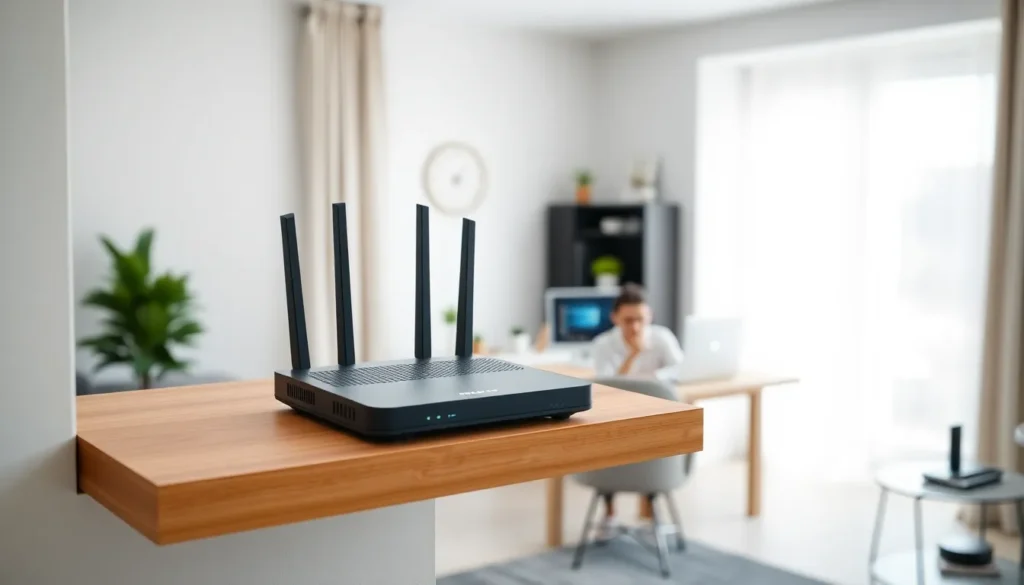

Slow WiFi and dead zones frustrate everyone. These home networking tips help users build a faster, more reliable connection without expensive upgrades or technical headaches. Whether someone streams movies, works remotely, or games online, a well-configured home network makes all the difference. This guide covers router selection, optimal placement, security practices, and interference reduction. Each section provides actionable steps that anyone can follow today.
Table of Contents
ToggleKey Takeaways
- Choose a router that matches your internet speed and household needs—WiFi 6 routers handle 15+ devices more efficiently.
- Place your router in a central, elevated location away from walls, metal objects, and electronics to maximize coverage.
- Secure your home network by changing default credentials, enabling WPA3 encryption, and setting up a guest network for visitors.
- Switch to less crowded WiFi channels and use both 2.4 GHz and 5 GHz bands strategically to reduce interference.
- Use Ethernet cables for gaming consoles and streaming devices to free up WiFi bandwidth and improve overall network performance.
- Apply these home networking tips today to eliminate dead zones and enjoy faster, more reliable internet throughout your home.
Choose the Right Router for Your Needs
The router serves as the foundation of any home network. Choosing the right one depends on household size, internet speed, and how many devices connect simultaneously.
Match Router Specs to Internet Speed
A router should support speeds equal to or greater than the internet plan. Someone paying for 500 Mbps service needs a router that handles at least that speed. Otherwise, they’re leaving performance on the table.
Consider WiFi Standards
WiFi 6 (802.11ax) routers offer significant improvements over older WiFi 5 models. They handle more devices efficiently and deliver faster speeds to each one. For homes with 15+ connected devices, WiFi 6 makes a noticeable difference.
Mesh Systems vs. Single Routers
Large homes or multi-story buildings benefit from mesh WiFi systems. These use multiple access points to blanket an entire space with consistent coverage. A single router works fine for apartments and smaller homes under 1,500 square feet.
Budget Considerations
Quality routers range from $80 to $300. Mid-range options around $150 satisfy most households. Spending more makes sense for power users who need advanced features like dedicated gaming channels or extensive parental controls.
Home networking tips often overlook router selection, but this decision affects everything else. Get this right first.
Optimize Router Placement for Better Coverage
Even the best router underperforms when placed poorly. Location matters more than most people realize.
Central Positioning
Place the router near the center of the home. WiFi signals radiate outward in all directions. A centrally located router reaches more rooms evenly than one tucked in a corner.
Elevation Helps
Routers perform better when elevated. Mount them on a wall or place them on a high shelf. Signals travel downward and outward more effectively from an elevated position. Floor placement limits range significantly.
Avoid Signal Blockers
Certain materials block or weaken WiFi signals:
- Concrete and brick walls
- Metal appliances and filing cabinets
- Fish tanks and large mirrors
- Microwave ovens (when operating)
Keep the router away from these obstacles. A clear line of sight to high-traffic areas improves performance.
Distance from Electronics
Other electronics can interfere with router signals. Place the router at least 3-4 feet away from TVs, cordless phones, and baby monitors. This simple home networking tip eliminates common interference problems.
Test and Adjust
Download a WiFi analyzer app to measure signal strength in different rooms. Move the router and test again. Small adjustments sometimes yield big improvements.
Secure Your Network Against Intruders
An unsecured network invites trouble. Neighbors might steal bandwidth. Hackers could access personal data. These home networking tips protect the network and everything connected to it.
Change Default Credentials
Every router ships with default login credentials. Hackers know these defaults. Change both the admin username and password immediately after setup. Use a strong password with 12+ characters, mixing letters, numbers, and symbols.
Enable WPA3 Encryption
WPA3 provides the strongest WiFi encryption currently available. If the router supports it, enable it. WPA2 remains acceptable for older devices, but avoid WEP entirely, it’s outdated and easily cracked.
Create a Guest Network
Set up a separate guest network for visitors and smart home devices. This keeps the primary network isolated. If a guest’s infected device connects, it can’t access computers on the main network.
Update Router Firmware
Manufacturers release firmware updates that patch security vulnerabilities. Check for updates every few months. Many modern routers offer automatic updates, enable this feature when available.
Disable Remote Management
Unless someone specifically needs to access the router from outside the home, disable remote management. This closes a potential entry point for attackers.
Security-focused home networking tips prevent headaches down the road. A few minutes of setup saves hours of potential trouble.
Reduce Interference and Manage Connected Devices
Too many devices and competing signals slow networks down. Smart management keeps everything running smoothly.
Switch WiFi Channels
Routers broadcast on specific channels. In dense neighborhoods, multiple networks often use the same channel, creating congestion. Access the router’s settings and switch to a less crowded channel. Channels 1, 6, and 11 work best for 2.4 GHz networks because they don’t overlap.
Use Both Frequency Bands
Modern routers offer 2.4 GHz and 5 GHz bands. The 2.4 GHz band travels farther but offers slower speeds. The 5 GHz band delivers faster speeds over shorter distances. Connect devices strategically:
- Smart home devices and older gadgets → 2.4 GHz
- Laptops, phones, and streaming devices → 5 GHz
Prioritize Traffic with QoS
Quality of Service (QoS) settings let users prioritize certain devices or activities. Gaming and video calls benefit from priority status. This home networking tip ensures important tasks get bandwidth first.
Audit Connected Devices
Check the router’s admin panel regularly. Unknown devices might indicate unauthorized access. Remove devices that no longer need network access. Fewer connected devices mean more bandwidth for those that remain.
Consider Wired Connections
Ethernet cables provide faster, more stable connections than WiFi. Connect gaming consoles, desktop computers, and streaming boxes directly to the router when possible. This reduces wireless congestion and improves performance for remaining WiFi devices.